> For the complete documentation index, see [llms.txt](https://knowledgebase.flaik.com/flaik-knowledge-base/llms.txt). Markdown versions of documentation pages are available by appending `.md` to page URLs; this page is available as [Markdown](https://knowledgebase.flaik.com/flaik-knowledge-base/for-sups-managers/training-setup-and-user-guide/paid-training-budget.md).
# Paid Training Budget
How to allocate paid training budgets for your instructors.
If you have decided to pay your instructors for training and want to setup an allowance of hours that each instructor can be paid for training, there are a few steps that will need to be taken care of in Settings and Staff Management.
### Enabling at your resort
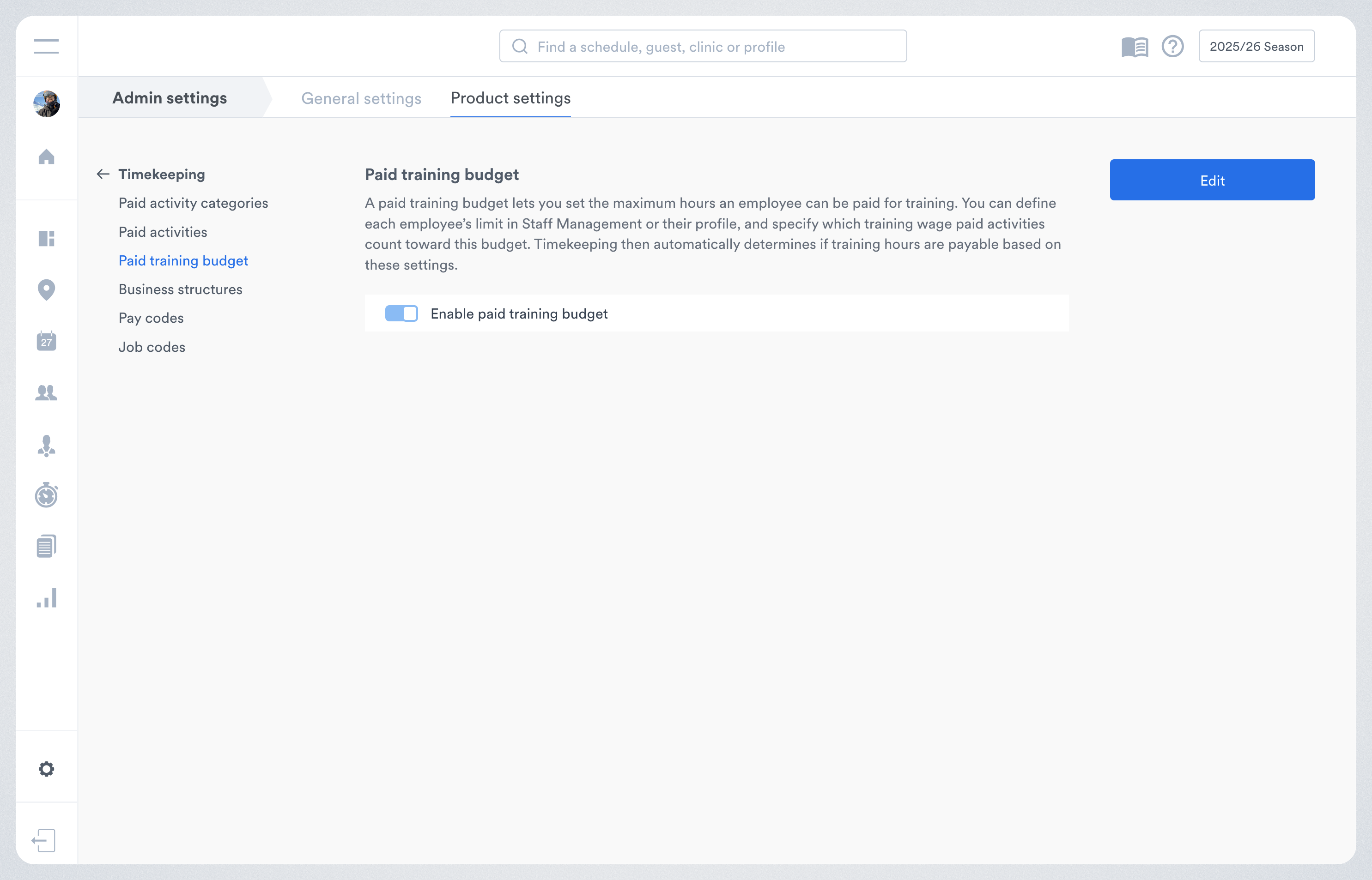
The first step to enabling the Paid training budget at your resort is to goAdmin -> Product settings -> Timekeeping → Paid training budget.
### Paid Activities
* Navigate to Paid Activities and then select Training Association from the right-hand side menu.
* Check out what paid activities are associated with the various training clinic categories
* Back on the Paid Activities page, view the applicable paid activities you wish to use for the paid training allowance feature.
* Ensure the following two fields are configured correctly
* 'Wage Type' is set to 'Training Wage'
* 'Counts Towards Paid Training Allowance?' is set to Yes
{% hint style="info" %}
Hint: The 'counts towards paid training allowance' field will only appear if the wage type is set to 'training wage'. It will not appear if any other wage type is selected
{% endhint %}
#### Staff Management
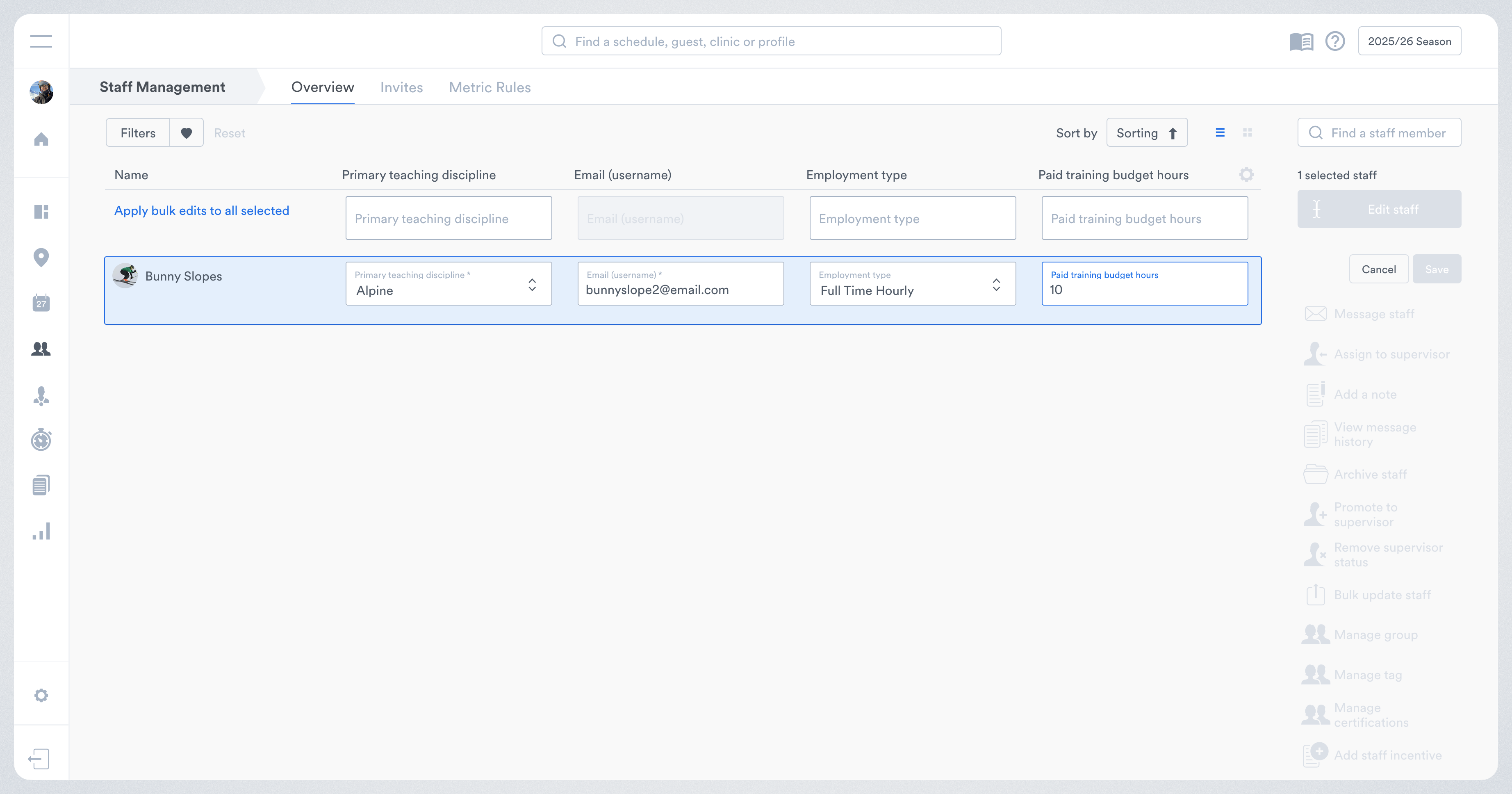
Once the above changes have occurred, you can define a paid training budget (in hours) for your instructors:
* Individually, via the *Employment* tab on a staff profile, or;
* In bulk, using *Staff Management → Bulk Edit* with the Paid Training Budget Hours column specified.
Updating the paid training budget within a staff profile
Updating the paid training budget in Staff Management (can be done in bulk!)
If this feature is enabled, three new columns available in Staff Management to view the relevant data.
* Paid Training Budget Hours
* Is the value set during the above step
* Paid Training Budget Used Hours
* Is a calculation based on paid activities that have been approved in Timekeeping
* Paid Training Budget Remaining Hours
* Is a calculation of 'Paid training budget hours' minus 'Paid training budget used hours'
### Timekeeping
When wages for training-related paid activities are calculated, the instructor’s remaining training budget is considered:
* Full pay, partial pay, or no pay is applied depending on available budget.
* Paid training budget usage is updated only upon timesheet approval.
* Pending timesheets are not counted toward current usage or remaining budget.
\
There are three types of training pay: full pay, partial pay, or no pay. In Timekeeping -> Timesheets if training pay is partial or no pay, this will be visible when you hover over the training pill or view the training clinic paid activity.
Hover information for a partial pay.
Paid activity for a partial pay.
Your staff will be informed if they have had partial or no pay because they have hit your training budget when they view My Timesheets. The first paid activity is full pay, 2nd paid activity is a partial pay, and 3rd paid activity is no pay applied.
Questions? Please get in touch with the [**flaik Support team**](/flaik-knowledge-base/welcome/readme/meet-our-customer-success-team.md).
---
# Agent Instructions
This documentation is published with GitBook. GitBook is the documentation platform designed so that both humans and AI agents can read, navigate, and reason over technical content effectively. Learn more at gitbook.com.
## Querying This Documentation
If you need additional information that is not directly available in this page, you can query the documentation dynamically by asking a question.
Perform an HTTP GET request on the current page URL with the `ask` query parameter, and the optional `goal` query parameter:
```
GET https://knowledgebase.flaik.com/flaik-knowledge-base/for-sups-managers/training-setup-and-user-guide/paid-training-budget.md?ask=&goal=
```
`ask` is the immediate question: it should be specific, self-contained, and written in natural language.
`goal` is optional and describes the broader end goal you are ultimately trying to accomplish on behalf of the user. GitBook uses it to tailor the answer towards what is most useful for that goal.
The response will contain a direct answer to the question and relevant excerpts and sources from the documentation.
Use this mechanism when the answer is not explicitly present in the current page, you need clarification or additional context, or you want to retrieve related documentation sections.